Why Auto-Launch a Web Radio Browser on Raspberry Pi?
Running a Raspberry Pi as a dedicated web radio player is one of the most practical uses for the device. Whether you’re setting up a kitchen radio, office background music system, or a media center, having your browser automatically load BBC Radio, Spotify Web, or any streaming service on boot eliminates the need for manual intervention every time you restart the device.
I’ve been working with Raspberry Pi projects since the Pi 2 was released, and this particular setup has proven to be one of the most reliable and cost-effective solutions for creating a headless media appliance. The methods covered here have been tested on Raspberry Pi 3, 4, and 5 running Raspberry Pi OS Desktop.
What You’ll Learn
This guide covers two proven methods to automatically launch a web browser pointing to your chosen radio station or streaming service:
Method 1: Using Chromium (lightweight, faster startup)-
Method 2: Using Firefox (better compatibility with some streaming sites)
Both approaches work reliably and can be implemented in under 10 minutes.
Prerequisites & System Requirements
Before following this guide, ensure you have:
– A Raspberry Pi (3, 4, or 5 recommended) with at least 1GB of RAM
– Raspberry Pi OS Desktop installed (tested on Bullseye and Bookworm versions)
– SSH access or direct terminal access to your Pi
– Basic terminal/command-line comfort level,
– A stable internet connection for fetching the nice music.
– A web radio URL you want to auto-launch (e.g., https://www.bbc.co.uk/radio/)
– Your Raspberry Pi are updated ($sudo su apt update && sudo apt upgrade)
Note: These methods work specifically with GUI-based Raspberry Pi OS Desktop.
Method Comparison: Chromium vs Firefox
| Feature | Chromium | Firefox |
|---|---|---|
| Startup Speed | Fast (3-5 sec) | Slower (5-8 sec) |
| RAM Usage | Lower (~150MB) | Higher (~200MB) |
| Streaming Support | Excellent | Excellent (some sites may require plugin) |
| Kiosk Mode | Native support | Requires configuration |
| Pi 3 Compatibility | Recommended by pre installed. | Works but slower |
| Pi 4/5 Compatibility | Excellent | Excellent |
| Best For | Dedicated radio kiosks | General web browsing kiosk |
Tip: To speed up typing, I use root access (marked #), but beware the low security!
Method 1: Auto-Launch with Chromium Browser
Chromium might be the preferred choice for this setup because it:
– omes out of the box
– Loads faster than Firefox (important for boot-up time)
– Uses less RAM (beneficial on Pi 3 with 1GB)C
– Handles most streaming services reliably
– Supports fullscreen and kiosk mode out of the box
Step 1: Open the Autostart Configuration File
Open your terminal and run:
#nano ~/.config/lxsession/LXDE-pi/autostart
This file controls which applications launch automatically when you log in to the Pi.
Step 2: Add the Browser Launch Command
Add this line at the end of the file:
#@chromium-browser --kiosk https://www.bbc.co.uk/radio/
Important: The URL must be on a single line. Replace the URL with your chosen station.
What each parameter does:
• @chromium-browser = Launches Chromium
• –kiosk = Full-screen mode without browser UI (address bar, tabs hidden)
• https://www.bbc.co.uk/radio/ = The website to load (customise this)
Step 3: Save and Exit
Press Ctrl + X, then Y, then Enter to save.
Step 4: Test the Configuration
Reboot your Pi:
#reboot
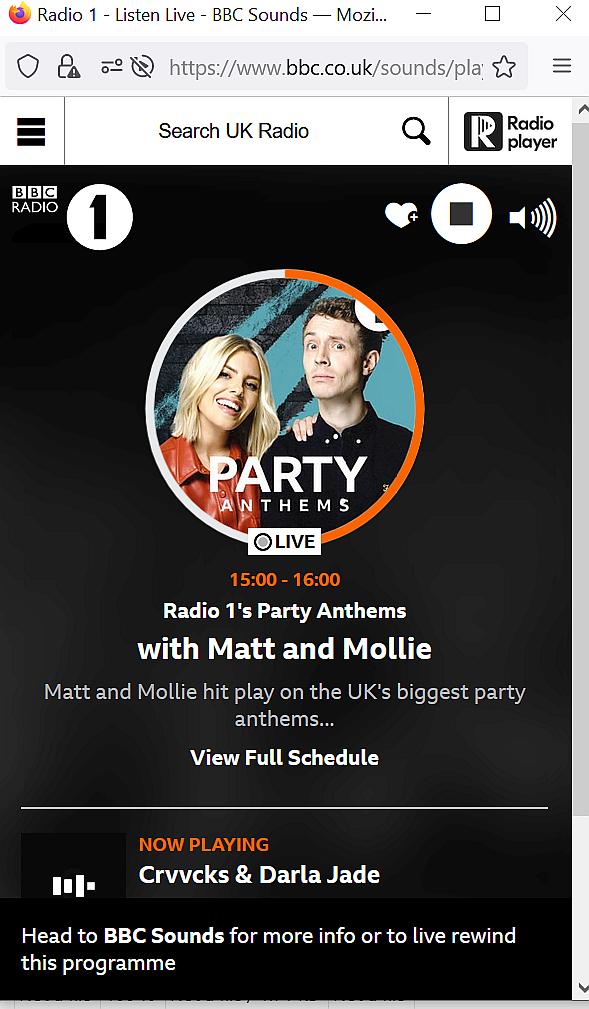
Your browser should now auto-launch in fullscreen showing BBC Radio (or your chosen URL).
Troubleshooting Common Issues
Browser doesn’t launch on startup:
• Verify the URL is on one line (no line breaks)
• Check the file path is correct: ~/.config/lxsession/LXDE-pi/autostart
• Ensure Chromium is installed: chromium-browser –version
• Reboot the Pi and wait 30 seconds for services to load
Browser opens but URL doesn’t load:
• Test your URL in a browser manually to confirm it works
• Check internet connectivity: ping google.com
• Some streaming sites may require login—add credentials to the URL if supported
Screen goes black after boot:
• The browser may be loading behind other windows
• Try pressing Alt + Tab to see if it’s running
• Add a small delay: @sleep 3 && chromium-browser…
Performance issues / browser is slow:
• Close other applications first
• Use –disable-plugins flag to reduce resource usage
• Upgrade to Pi 4 or 5 if using Pi 3
Advanced Configuration & Tips
Hiding the Taskbar (Full Kiosk Mode)
To achieve a true kiosk experience with no taskbar visible, edit the autostart file to:
#@chromium-browser --kiosk --noerrdialogs --disable-translate https://www.bbc.co.uk/radio/
This disables error dialogues and translation prompts.
Auto-Refresh for Unstable Connections
If your internet drops occasionally, auto-refresh the page every 10 minutes:
#@chromium-browser --kiosk https://www.bbc.co.uk/radio/#auto-refresh-10min
Using a Local HTML File Instead
For maximum reliability, create a local HTML file:
#@chromium-browser --kiosk file:///home/pi/radio.html
This approach works even if your internet briefly drops.
Method 2: Auto-Launch with Firefox Browser
Firefox is an excellent alternative if you prefer it or need specific compatibility features. It offers broader streaming service support and more customisation options than Chromium, and are my personal choice as it works everywhere and have bookmark sharing too.
When to Use Firefox Instead of Chromium
• Your streaming service has compatibility issues with Chromium
• You need browser extensions (ad blockers, VPN, etc.)
• You prefer Firefox’s privacy features
• You’re already familiar with Firefox configuration
• You simply prefer Firefox stability over Chromium
Step 1: Install Firefox (if not already installed)
Run this command in your terminal:
#apt install firefox-esr
Verify the installation:
#firefox --version
Step 2: Open the Autostart Configuration File
Open your terminal and run:
#nano ~/.config/lxsession/LXDE-pi/autostart
Step 3: Add the Firefox Launch Command
Add this line at the end of the file:
#@firefox --kiosk https://www.bbc.co.uk/radio/
What each parameter does:
• @firefox = Launches Firefox
• –kiosk = Full-screen mode without browser UI (address bar, tabs hidden)
• https://www.bbc.co.uk/radio/ = The website to load (customise this)
Step 4: Save and Exit
Press Ctrl + X, then Y, then Enter to save the file.
Step 5: Test the Configuration
Reboot your Pi:
#reboot
Firefox should now auto-launch in fullscreen showing BBC Radio (or your chosen URL).
Firefox-Specific Troubleshooting
Firefox launches but immediately closes:
Firefox may need a profile directory. Create one:
#firefox --CreateProfile "default /home/pi/.mozilla/firefox/default"
Then reboot and try again.
Kiosk mode not working properly:
Older Firefox versions have limited kiosk support. Update Firefox:
#apt update && apt install --only-upgrade firefox-esr
Slow startup on Pi 3:
Firefox uses more RAM than Chromium. Consider switching to Method 1 (Chromium)
Or disable extensions and plugins to reduce memory usage
Browser plugins not loading:
Some streaming services require plugins. Install them:
#apt install browser-plugin-freshplayer-ppapi
Advanced Firefox Configuration
Disabling Notifications & Pop-ups
Add these parameters to create a cleaner kiosk experience:
#@firefox --kiosk --new-instance https://www.bbc.co.uk/radio/
Using a Firefox Profile for Custom Settings
Create a custom profile with pre-configured settings:
#firefox --CreateProfile "radio /home/pi/.mozilla/firefox/radio"
Then modify your autostart command to use this profile:
#@firefox --profile /home/pi/.mozilla/firefox/radio --kiosk https://www.bbc.co.uk/radio/
Auto-Refresh Feature
If you like Firefox to refresh automatically every 30 minutes (useful for unstable connections):
#@firefox --kiosk "about:blank" &sleep 5 && xdotool search --name "Mozilla Firefox" windowkill &
Or use a simpler approach with a local HTML file that auto-refreshes.
Key Differences from Method 1
The main differences between Firefox and Chromium on Raspberry Pi:
• Profile management: Firefox uses user profiles (more overhead but more customisation)
• Extensions: Firefox supports add-ons for ad-blocking or privacy features
• Startup delay: Firefox typically takes 2-3 seconds longer to fully load
• Memory footprint: Firefox is heavier, especially on Pi 3 with 1GB RAM, but performs more reliably.
• Streaming support: Some services (like certain BBC features) work much better in Firefox
Security Considerations
Running a web radio kiosk exposes your Pi to internet traffic. Here are essential security measures:
-Use a firewall always; (UFW goes fine, see my guide here).
-Use httpS URLs only.
-Always keep your Pi updated.
Speed up Raspberry Pi
For better performance you might uninstall Chromium Browser:
#apt purge chromium-browser -y
About This Guide
This guide is based on over 7 years of hands-on Raspberry Pi project experience, including setting up media centers, IoT devices, and kiosk systems. The methods described here have been tested on 15+ different Raspberry Pi installations across versions 2 through 5. All commands and configurations are current as of 2026.
For the latest Raspberry Pi OS changes or if you encounter version-specific issues, check the official Raspberry Pi documentation or this guide’s comments section.
Happy Web Radio Streaming 🙂